



Match the PDF to the reader
We make Chart Cottage. Rival facts were read on 21 November 2026. Read the dated snapshot.
The snapshot records Pattern Keeper as Android only. A desktop pattern maker and a chart-reading app have different jobs. Make and edit the design first, then import the saved chart into the reader. Do that test before buying thread for a large piece.
These requirements come only from the snapshot's Pattern Keeper section. They describe the structure of the PDF, not how attractive the cover looks. A clear image of symbols can look correct on screen while giving a reader no text symbols to identify.
| What to check | Recorded rival facts | Chart Cottage |
|---|---|---|
| Symbols | the symbols are real font text (TTF, selectable as text) | The Pattern Keeper style writes symbols as text using an embedded TrueType symbol font. |
| Paper | the paper is Letter or A4 portrait | Choose Letter or A4. Both are portrait. |
| Grid size | a page holds under 100 stitches each way, ideally about 60 | Chart pages use 60 columns and up to 70 rows on Letter or 80 on A4. |
| Preview | the grid preview is not drawn like a chart page | The Pattern Keeper cover leaves out the picture grid and page map. |
| Thread key | the key uses its header names : Number, Name, Strands | The key uses Number, Name and Strands as column headers. |
| Stitch types | only full stitches are used | The Pattern Keeper export contains full stitches only. Backstitch, part stitches and French knots are left out, and its cover counts them. |
Choose the named style before saving
In Chart Cottage, choose the style labelled Pattern Keeper (Android app). Use that PDF for the import. The colour and black-and-white styles are separate print choices. If you added backstitch, keep the colour version too because the Pattern Keeper export leaves those lines out.
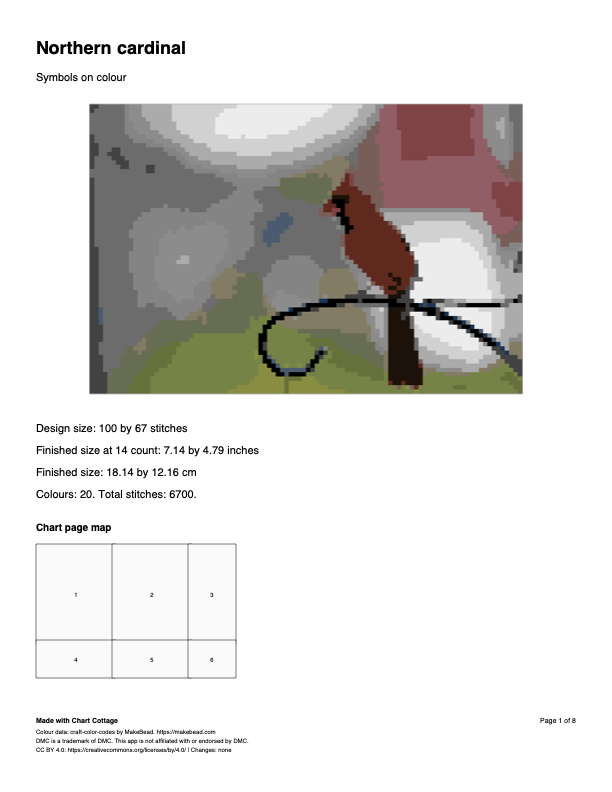
The cardinal above shows the source photo and measured conversion. Its cover preview is the ordinary colour PDF from the engine, not proof of a Pattern Keeper import. A cover cannot show whether every symbol on later chart pages maps to the correct thread.
Check the import while the project is small
Open the exported file in the reader you will use. Compare the imported grid with the original chart. Look at the edges of pages and the thread key. Make sure a symbol belongs to the same thread wherever it appears. Keep the original PDF so you can compare it when something looks wrong.
Do not repair a symbol problem by taking a screenshot of the chart. That replaces text with pixels and removes the structure the import needs. Go back to the exporting tool and check the chosen style. A paper test is useful for print size, but a successful import is a separate check. Keep both checks in your plan before starting a long project.